![IronSight Emblem_white background-1.png]](https://info.ironsight.app/hs-fs/hubfs/IronSight%20Emblem_white%20background-1.png?width=40&height=40&name=IronSight%20Emblem_white%20background-1.png)
What are Auto-Complete Filters?
Auto-complete filters help you find jobs more quickly by suggesting relevant filter values as you type.
Instead of manually selecting filters or knowing exact values, you can simply start typing, and the system will show matching options you can select. This reduces time spent navigating filter menus, makes it easier to discover available data, and improves search accuracy.
How to Use Auto-Complete Filters
- Click into the “Filter by” field.
- Start typing a keyword related to what you’re looking for:
- Company name (e.g., Sure…)
- Person’s name (e.g., La…)
- Location
- Job number
- Check the field label in the suggestion to confirm it’s the correct filter.
- Select a suggestion from the dropdown.
- The filter will be applied immediately.
Note: When using auto-complete, only one filter can be applied at a time. If you are looking to filter by multiple values (eg; Resource type and requester), you can use regular filtering.
Examples
Filter by Service Provider
- Type: Sure
- Select: Sure Flow– Service Provider
- Result: Jobs filtered by that provider
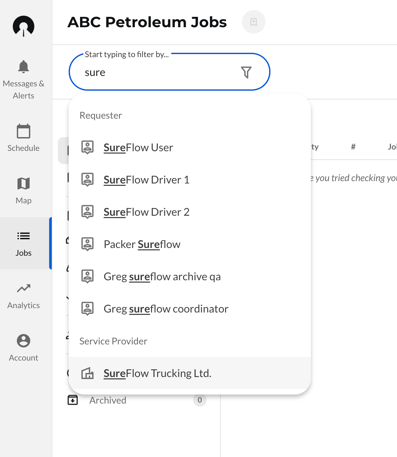
Search by Job Number
- Type a job number
- Click the result to open the Job Drawer
- If the job does not exist, the system will indicate that.
Search by Location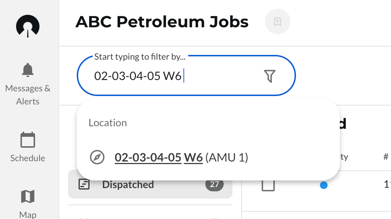
- Start typing the LSD of the location.
- Click the result to open the Jobs that have this location.
- If no Jobs exist, the system will indicate that.
Filters Available in Auto - Complete
- Job Number
- Division
- Requester
- Resource type
- Activity
- Service Provider
- Location
- Tags
Note: Only the available filters in this list will be auto-suggested, if the value you are trying to find is outside this list, you can type in the name of the field to filter by the field instead of the value.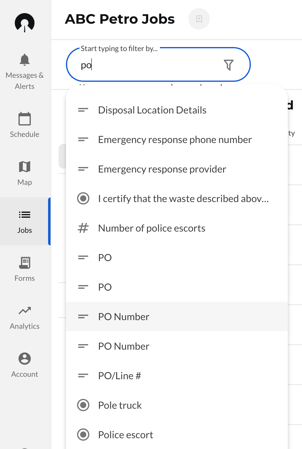
How Suggestions Work
- Suggestions include only valid, existing values.
- Each suggestion shows both the value and the field it belongs to (e.g., SureFlow Trucking LTD – Service Provider)
- Results are prioritized based on relevance to what you type.
- Suggestions update as you continue typing.
Tips
- You only need to type part of a word or name
- If you’re unsure of the exact value, start with a general term
- Always check the field label in the suggestion to confirm it’s the correct filter
- Try different keywords if you don’t see the expected result.