---
title: How to complete Jobs with stops
description: How to complete Jobs with stops
---
[Skip to content](https://info.ironsight.app/knowledge/completing-jobs-with-stops#main-content)
[More support](https://info.ironsight.app/knowledge/kb-tickets/new?hsLang=en)
![IronSight Emblem\_white background-1.png\]](https://info.ironsight.app/hs-fs/hubfs/IronSight%20Emblem_white%20background-1.png?width=40&height=40&name=IronSight%20Emblem_white%20background-1.png)
- [Submit Support Ticket](https://info.ironsight.app/knowledge/kb-tickets/new)
- [Download App](https://info.ironsight.app/knowledge/download-apps)
- [Contact Us](https://www.ironsight.app/contact)
Open main navigation
Close main navigation
- [Submit Support Ticket](https://info.ironsight.app/knowledge/kb-tickets/new)
- [Download App](https://info.ironsight.app/knowledge/download-apps)
- [Contact Us](https://www.ironsight.app/contact)
- [More support](https://info.ironsight.app/knowledge/kb-tickets/new)
- [Download Apps](https://info.ironsight.app/knowledge/download-apps)
[Download Apps](https://info.ironsight.app/knowledge/download-apps?hsLang=en)
Hello! How can we help?
- There are no suggestions because the search field is empty.
1. [Support Resources](https://info.ironsight.app/knowledge?hsLang=en)
2. [IronSight for Field Workers](https://info.ironsight.app/knowledge/ironsight-for-field-workers?hsLang=en)
June 17, 2026
# How to complete Jobs with stops
### 1. Start the Job
- Open the job
- Tap **Start**.
- The job status changes to **Active.**
.jpeg?width=185&height=400&name=Image%20(10).jpeg)
### 2. Confirm Pickups
- The start button will be replaced by the "Confirm Pickup" button
- If you scroll to the locations booked, you can choose which pickup to confirm first, if you have multiple.
- You can also SKIP a pickup on IronSight app version 3.3.25 and higher if you did go to site, but no product was able to be hauled.
- If you did visit the site and pickup some product, Tap **Confirm pickup**.
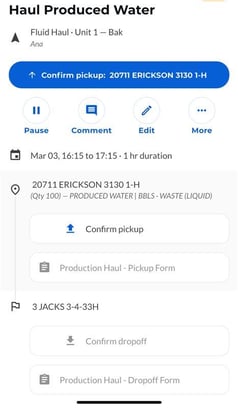
- Confirm the details for accuracy:
- Location visited
- Item and quantity match what you picked up
- Date and time of pickup matches your time on site
- If something is incorrect, tap **Edit** to make necessary changes.
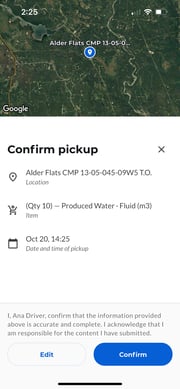
- Once any edits have been made, or if the details are correct, **Tap** **Confirm**.
- Once confirmed, you may be prompted to fill a form right away, or complete the next stop confirmation follow the system prompts on the blue button until "slide to complete appears"
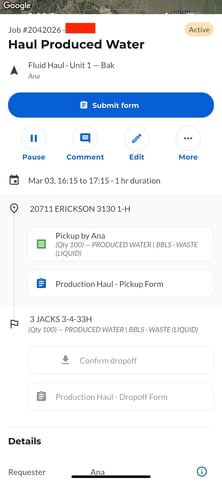
- If there are multiple pickup locations, repeat this process for each pickup before moving on.
- To edit your previous submission, you can also click on the confirmed receipt and update if a mistake was made.
### 3. Confirm Dropoff
- Once all visited pick-up locations are confirmed and any required pickup forms are complete, the prompt will switch to confirm drop-off.
- Tap **Confirm dropoff while at the site you delivered fluid to**.
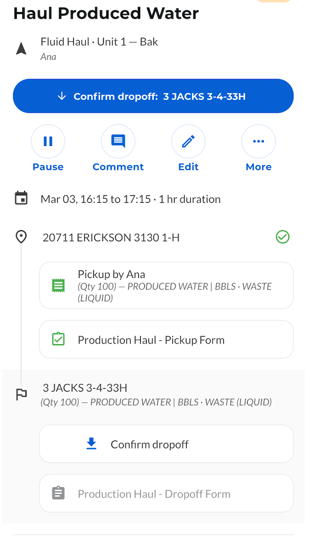
- If you are still at the site that the job was booked to - the system will pre-populate the drop off location, drop off date/time and you can confirm or edit if anything needs updating.
- If you were at a different Drop Off location, it will show the red bar, and you need to confirm where you did go - the product and volume, as well as date/time of pickup. Scroll through the window below to complete all details then Confirm.
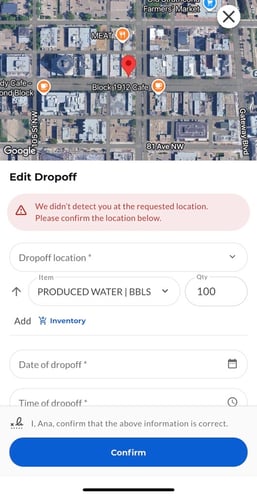
- Click "Drop Off Location" and you will be shown the requested location and the nearest 10 locations to you - if none of those match where you went, use the "Search" to find the location you visited.
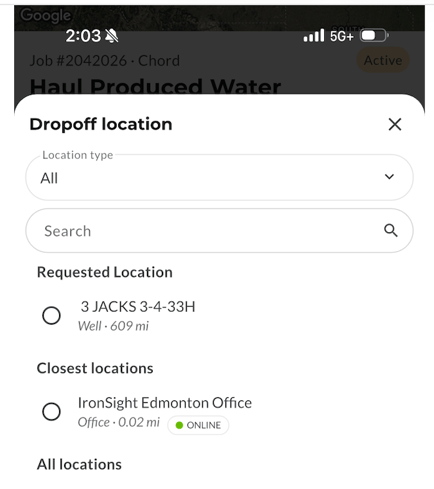
- Select the accurate location.
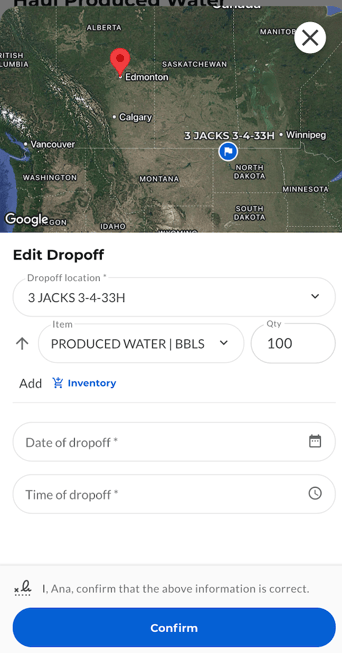
- Now confirm the quantity, time and date of the drop-off, and tap confirm.
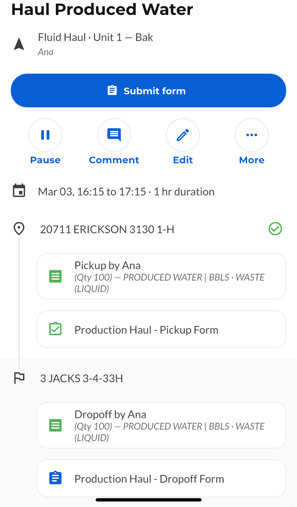
- If the drop-off location has a form attached to it, click the "Submit form" button to fill out and submit the form.
### 5. Complete the Job
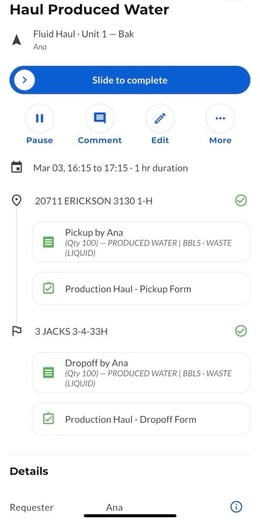
- Slide the "**Slide to complete"** bar.
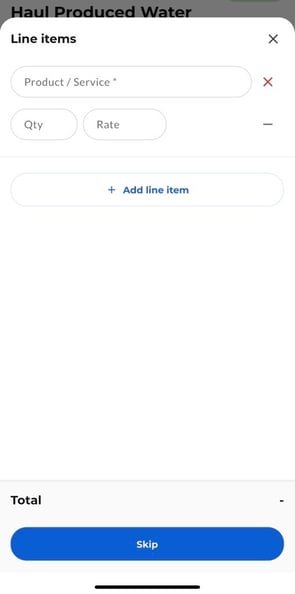
- You will be asked to enter line items. Add if they apply to your workflow. If not, hit "Skip", and the job will be completed.
- [IronSight for Field Workers](https://info.ironsight.app/knowledge/ironsight-for-field-workers?hsLang=en#main-content)
- [Completing Jobs](https://info.ironsight.app/knowledge/ironsight-for-field-workers?hsLang=en#completing-jobs)
- [Requesting Jobs](https://info.ironsight.app/knowledge/ironsight-for-field-workers?hsLang=en#requesting-jobs)
- [Completing Forms](https://info.ironsight.app/knowledge/ironsight-for-field-workers?hsLang=en#completing-forms)
- [IronSight for Coordinators](https://info.ironsight.app/knowledge/ironsight-for-coordinators?hsLang=en#main-content)
- [Working with Jobs](https://info.ironsight.app/knowledge/ironsight-for-coordinators?hsLang=en#working-with-jobs)
- [Dispatching/Coordinating](https://info.ironsight.app/knowledge/ironsight-for-coordinators?hsLang=en#dispatching-coordinating)
- [Working with Forms](https://info.ironsight.app/knowledge/ironsight-for-coordinators?hsLang=en#working-with-forms)
- [IronSight for Admins](https://info.ironsight.app/knowledge/ironsight-for-admins?hsLang=en#main-content)
- [Rate Agreements](https://info.ironsight.app/knowledge/ironsight-for-admins?hsLang=en#rate-agreements)
- [Locations](https://info.ironsight.app/knowledge/ironsight-for-admins?hsLang=en#locations)
- [Custom Fields](https://info.ironsight.app/knowledge/ironsight-for-admins?hsLang=en#custom-fields)
- [IronSight for Service Providers](https://info.ironsight.app/knowledge/ironsight-for-service-providers?hsLang=en#main-content)
- [Guest Requester](https://info.ironsight.app/knowledge/ironsight-for-service-providers?hsLang=en#guest-requester)
- [SP Admins](https://info.ironsight.app/knowledge/ironsight-for-service-providers?hsLang=en#sp-admins)
- [E-Manifest](https://info.ironsight.app/knowledge/e-manifest?hsLang=en#main-content)
- [Receiver](https://info.ironsight.app/knowledge/e-manifest?hsLang=en#receiver)
- [FAQs](https://info.ironsight.app/knowledge/faqs?hsLang=en#main-content)
- [Login FAQs](https://info.ironsight.app/knowledge/faqs?hsLang=en#login-faqs)
- [Mobile FAQ](https://info.ironsight.app/knowledge/faqs?hsLang=en#mobile-faq)
- [User Guides](https://info.ironsight.app/knowledge/user-guides?hsLang=en)
- [Release Notes](https://info.ironsight.app/knowledge/release-notes?hsLang=en#main-content)
- [Mobile Release Notes](https://info.ironsight.app/knowledge/release-notes?hsLang=en#mobile-release-notes)
- [Web Release Notes](https://info.ironsight.app/knowledge/release-notes?hsLang=en#web-release-notes)
- [Videos y Fichas de Instrucciones](https://info.ironsight.app/knowledge/videos-y-fichas-de-instrucciones?hsLang=en#main-content)
- [General](https://info.ironsight.app/knowledge/videos-y-fichas-de-instrucciones?hsLang=en#general)
- [Solicitar, Ejecutar, y Aprobar Requerimientos](https://info.ironsight.app/knowledge/videos-y-fichas-de-instrucciones?hsLang=en#solicitar-ejecutar-y-aprobar-requerimientos)
- [Coordinar y Asignar](https://info.ironsight.app/knowledge/videos-y-fichas-de-instrucciones?hsLang=en#coordinar-y-asignar)
- [Administrar los datos de la cuenta](https://info.ironsight.app/knowledge/videos-y-fichas-de-instrucciones?hsLang=en#administrar-los-datos-de-la-cuenta)
- [Current and Known Issues](https://info.ironsight.app/knowledge/current-and-known-issues?hsLang=en#main-content)
- [Resolved Issues](https://info.ironsight.app/knowledge/current-and-known-issues?hsLang=en#resolved-issues)
- [Download Apps](https://info.ironsight.app/knowledge/download-apps?hsLang=en)
- [General How To for all IronSight Users](https://info.ironsight.app/knowledge/general-how-to-for-all-ironsight-users?hsLang=en)
- [Integration](https://info.ironsight.app/knowledge/integration?hsLang=en)
- [Job Search](https://info.ironsight.app/knowledge/job-search?hsLang=en)
- [Submit Support Ticket](https://info.ironsight.app/knowledge/kb-tickets/new)
- [Download App](https://info.ironsight.app/knowledge/download-apps)
- [Contact Us](https://www.ironsight.app/contact)
[](https://www.ironsight.app)
[mailto:email@email.com](mailto:email@email.com)
Copyright © 2025, IronSight