![IronSight Emblem_white background-1.png]](https://info.ironsight.app/hs-fs/hubfs/IronSight%20Emblem_white%20background-1.png?width=40&height=40&name=IronSight%20Emblem_white%20background-1.png)
When an energy producer books a disposal job in IronSight and your facility is set as the destination (drop-off location), you will be automatically added as a follower on that job. You will have visibility into the job throughout its lifecycle, but the only time you need to take action is when the job is completed — to confirm the e-manifest receipt.
Confirming the receipt means verifying that the product type and quantity the driver recorded match what was actually received at your facility.
This guide walks you through everything you need to do.
Before You Begin
Important: You must use the web version of IronSight to confirm receipts. This functionality is not available on the mobile app.
- You can access the web version on a computer or through a mobile browser
- A computer is strongly recommended — on mobile browsers the interface can be cramped
- Web address: us.ironsight.app
Step 1 — Log In to IronSight
- Open a web browser and go to us.ironsight.app
- Log in with your IronSight credentials
- You will land on the Dispatch Hub
About your account setup: All users at your company are automatically added as followers to jobs where your facility is the destination — as long as your company has fewer than 10 users. If you have 10 or more users, specific users will need to be configured by your IronSight administrator to receive job visibility.
Step 2 — Navigate to the Jobs Tab
Once logged in:
- Look at the left-side menu
- Click on Jobs — this is the only tab you need
- All of your jobs live here

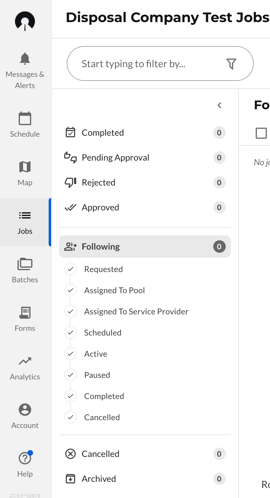
Step 3 — Go to the "Following" Bucket
Because you are added to jobs as a follower (not as the job requester or service provider), your jobs will not appear under Queue, Dispatch, or other status categories.
- All your jobs are under the "Following" bucket
- Click Following to see your jobs
Step 4 — Filter to Show Only Completed Jobs
You only need to act on completed jobs. To make it easier to find them:
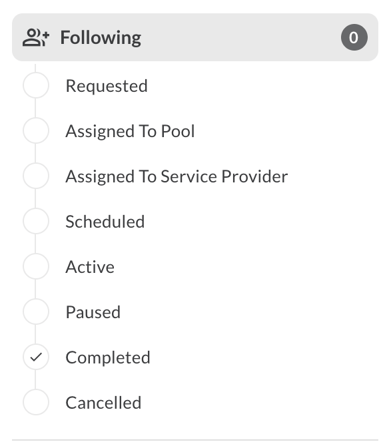
- Inside the Following bucket, you will see status checkboxes (e.g., Requested, Active, Assigned, Completed, etc.)
- Uncheck all statuses except "Completed."
- This will filter your view to show only completed jobs that need attention
Step 5 — Use the "Has Received" Filter to Find Unconfirmed Receipts
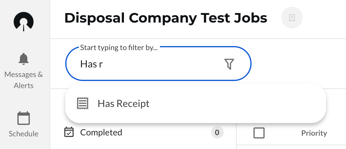
Rather than reviewing every completed job manually, use the built-in filter:
- In the filter options, find the "Has Received" filter
- Set it to "No" — this shows only jobs where the receipt has NOT yet been confirmed
- These are the jobs you need to action
Save This Filter for Future Use
To avoid setting this up every time:
- After applying the filter, click the small save icon (Save Current Filters)
- Name it something like "No Received"
- Click Save
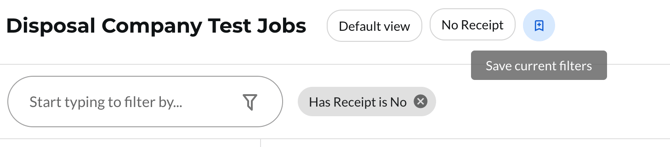
Next time you log in, simply click your saved filter to jump straight to jobs needing receipt confirmation.
Step 6 — Confirm a Receipt
Once you've found a job that needs confirmation:
- Open the job
- Look for the small blue "Confirm Receipt" button — it appears beneath the drop-off location on the job card
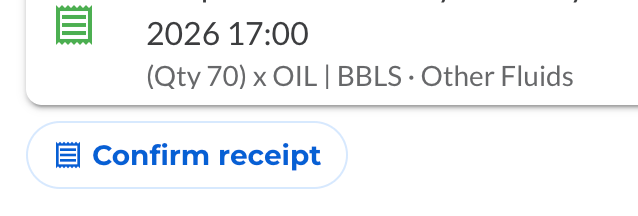
Important: You may also see buttons labelled "Reject Approval" or "Pending Approval" on some jobs. Do not click those. The only button you should ever click is the blue Confirm Receipt button.
- Click Confirm Receipt
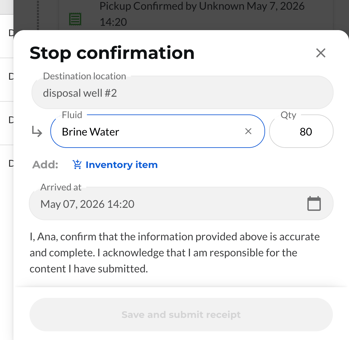
- A confirmation screen will appear showing the disposal details the driver recorded at your facility:
- Inventory / product type
- Quantity disposed
- Disposal location
- Compare these details against your own facility records (your haul ticket or disposal received documentation)
- If everything matches → proceed to Step 7
- If there is a discrepancy → correct it before submitting (see below)
Correcting Discrepancies
If the driver recorded incorrect information, you can edit it directly on the confirmation screen:
- Wrong quantity? Update the quantity to match what was actually received at your facility
- Wrong product type? Select the correct inventory/product
- Make any corrections before submitting
Step 7 — Save and Submit the Receipt
Once the details are verified (and corrected if needed):
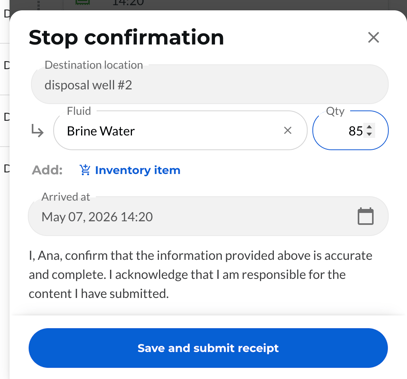
- Click "Save and Submit Receipt"
- The receipt is now confirmed
- The record will show your name and the date of confirmation
That's it — your part of the job is complete.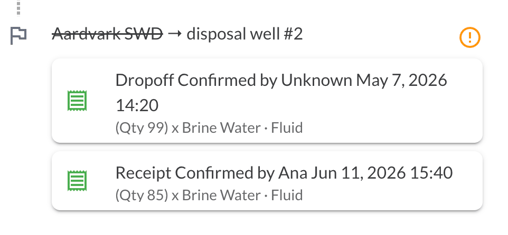
Viewing Confirmed Receipts
To see jobs where you have already confirmed receipts:
- Go to the "Has Received" filter
- Set it to "Yes"
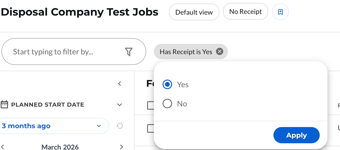
- You will see all confirmed jobs, each showing:
- Who confirmed it
- The date it was confirmed
Editing a Confirmed Receipt
You can edit a confirmed receipt at any time:
- Open the confirmed receipt, click on the edit button.
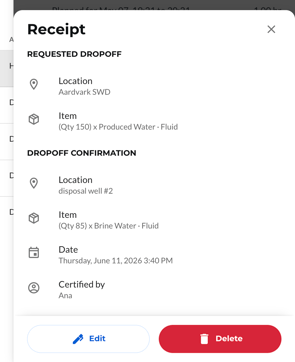
- Make your changes to the receipt details
- Click "Save and Submit Receipt" again — the confirmation date will update
Note: You cannot delete a receipt on a completed job. If a receipt needs to be fully removed, the job will need to be reopened by the job requester.
Finding the E-Manifest PDF
If you need to reference details from the manifest (such as an operator or permit number):
- Open the job
- Click the "Download PDF" button
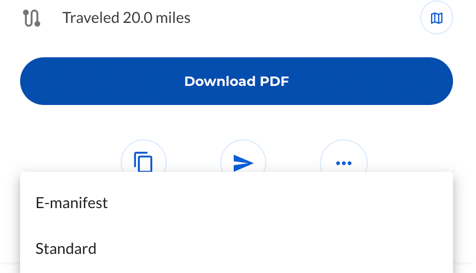
- Select the option to download the e-manifest PDF
- The relevant numbers will be listed on the manifest, tied to the location where the waste originated
Quick Reference Summary
| Step | Action |
|---|---|
| 1 | Log in at us.ironsight.app (web only) |
| 2 | Click Jobs in the right-side menu |
| 3 | Select the Following bucket |
| 4 | Uncheck all statuses except Completed |
| 5 | Set Has Received = No to find unconfirmed jobs |
| 6 | Click the blue Confirm Receipt button on the job |
| 7 | Verify details against your facility records; correct if needed |
| 8 | Click Save and Submit Receipt |
Tips & Notes
- Save your filters — the "Has Received = No" filter saved as a shortcut makes your daily workflow much faster
- Web only — the mobile app does not support receipt confirmation; use a browser
- You can edit receipts after submission, but cannot delete them on completed jobs
- Manifest details are on the e-manifest PDF, not the haul ticket — download it from within the job