---
title: Search and Filter Job Groups
description: Jobs KB guide
---
[Skip to content](https://info.ironsight.app/knowledge/how-to-use-job-buckets-to-search-filter-jobs#main-content)
[More support](https://info.ironsight.app/knowledge/kb-tickets/new?hsLang=en)
![IronSight Emblem\_white background-1.png\]](https://info.ironsight.app/hs-fs/hubfs/IronSight%20Emblem_white%20background-1.png?width=40&height=40&name=IronSight%20Emblem_white%20background-1.png)
- [Submit Support Ticket](https://info.ironsight.app/knowledge/kb-tickets/new)
- [Download App](https://info.ironsight.app/knowledge/download-apps)
- [Contact Us](https://www.ironsight.app/contact)
Open main navigation
Close main navigation
- [Submit Support Ticket](https://info.ironsight.app/knowledge/kb-tickets/new)
- [Download App](https://info.ironsight.app/knowledge/download-apps)
- [Contact Us](https://www.ironsight.app/contact)
- [More support](https://info.ironsight.app/knowledge/kb-tickets/new)
- [Download Apps](https://info.ironsight.app/knowledge/download-apps)
[Download Apps](https://info.ironsight.app/knowledge/download-apps?hsLang=en)
Hello! How can we help?
- There are no suggestions because the search field is empty.
1. [Support Resources](https://info.ironsight.app/knowledge?hsLang=en)
2. [Job Search](https://info.ironsight.app/knowledge/job-search?hsLang=en)
March 30, 2026
# Search and Filter Job Groups
Job Groups in IronSight allow you to quickly navigate jobs based on where they sit in the job lifecycle, helping you focus on the right work at the right time.
This guide walks you through what groups are, how they work, and how to use them to efficiently search, sort, and filter your jobs.
---
#### **1. What Are Job Groups?**
A **Job Groups** is a pre-defined group of jobs organized by their job status.
They map directly to the major stages of the job lifecycle:
**Request → Schedule → Complete → Approve**
Each group represents a “work mode” and shows only the statuses relevant to that mode. Groups helps reduce the number of jobs you must visually manage at once, and improves speed when switching between job lists.
#### **2. The Job Groups & What They Mean**
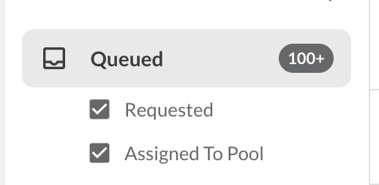
### **Queued**
- **Statuses:** Requested, Assigned to Pool, Assigned to Service Provider
- **Purpose:** Monitor new requests, organize, and dispatch
- **Default date range:** All dates (Date range applied also gets applied for the dispatched group).
- **Sorting options:** Created date, Last modified, Start date, Status, Job Number, Resource, Field Worker.
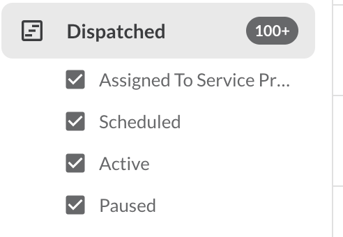
### **Dispatched**
- **Statuses:** Scheduled, Active, Paused
- **Purpose:** Monitor progress & update active Jobs.
- **Default date range:** All dates. (Date range applied also gets applied for the dispatched group).
- **Sorting options:** Created date, Last modified, Start date, Status, Job Number, Resource, Field Worker.
### **Completed**
- **Status:** Completed
- **Purpose:** Correct data, add supporting documents
- **Default date range:** Past 3 Months. (Date range applied also gets applied for the Pending Approval, Rejected, Approved, Cancelled groups).
- **Max range:** One Year
- **Sorting options:** Created date, Last modified, Start date, Status, Job Number, Resource, Field Worker.
### **Pending Approval**
- **Status:** Pending Approval
- **Purpose:** Approve or reject completed jobs
- **Default date range:** Past 3 Months
- **Max range:** One Year
- **Sorting options:** Created date, Last modified, Start date, Status, Job Number, Resource, Field Worker.
### **Rejected**
- **Status:** Rejected
- **Purpose:** Review, correct, and resubmit
- **Default date range:** Past 3 Months
- **Max range:** One Year
- **Sorting options:** Created date, Last modified, Start date, Status, Job Number, Resource, Field Worker.
### **Approved**
- **Status:** Approved
- **Purpose:** Back-office review, sync, reference
- **Default date range:** Past 3 Months
- **Max range:** One Year
- **Sorting options:** Created date, Last modified, Start date, Status, Job Number, Resource, Field Worker.
### **Canceled**
- **Status:** Canceled
- **Purpose:** Reference only
- **Default date range:** Past 3 Months
- **Max range:** One Year
- **Sorting options:** Created date, Last modified, Start date, Status, Job Number, Resource, Field Worker.
### **Archived**
- **Status:** Any
- **Purpose:** Long-term reference
- **Default date range:** Past 3 Months
- **Max range:** One Year
- **Sorting options:** Created date, Last modified, Start date, Status, Job Number, Resource, Field Worker.
---
#### **3. How to Navigate Groups in IronSight**
### **Accessing Groups**
On the **Jobs List**, you’ll see a **left-side panel** that displays all groups.
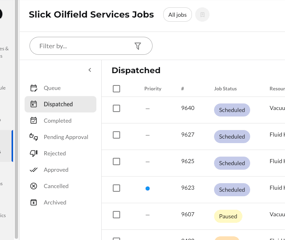
- The panel can be **expanded** by click on the "\> " button to show bucket names
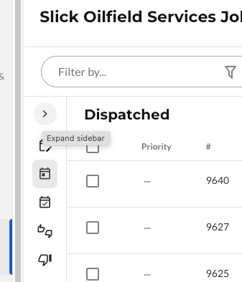
- Or **collapsed** using the "\<" button to show only the status icons, giving you more screen space.
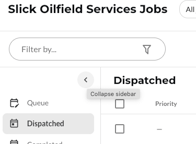
- You can click any group icon or title to switch to that bucket.
---
#### **4. Using Filters with Groups**
### 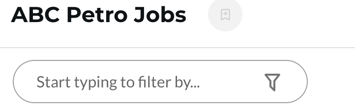
Any filters you’ve applied (including **saved filter sets**) apply **across all groups**.
This means you can:
- Filter by location, job type, resource, etc.
- Then click through Queue → Dispatched → Completed.
- And see only the jobs that match your filter *within each group.*
To search:
1. Use the **filter bar** at the top of the jobs list
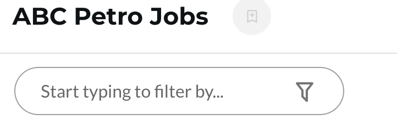
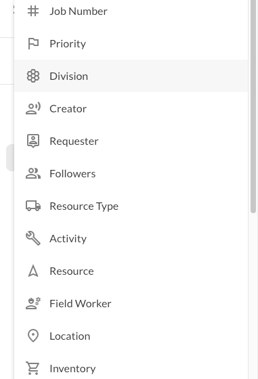
2. Filter by:
3. Your search automatically filters the jobs *within the bucket you’re in*
### **Important Filter Rules**
- Saved filters *that include job statuses or date ranges* will **ignore those parts**
because groups now control job statuses & date ranges themselves.
- If you change the sort order within a bucket, **it applies only to that bucket**.
---
#### **5. How Sorting Works in Groups**
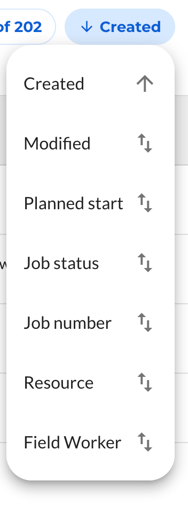
Every bucket allows custom sorting based on relevant attributes, including:
- Created date
- Last modified
- Planned start (or Start date)
- Status
- Job Number
- Resource
- Field Worker
To sort:
1. Select the **Sort** dropdown.
2. Pick the field you want to sort by.
3. Your selection applies only to the current bucket.
---
#### **Frequently Asked Questions**
#### **Can I make my own groups?**
No, you can’t create custom groups.
But you *can* create saved filter sets and then move through groups with those filters applied.
#### **Does everyone see the same groups?**
Yes, groups are standardized across IronSight.
#### **What bucket opens by default for new users?**
**Queue**.
#### **Can I view all job statuses at once?**
Yes .()
#### **Why do some groups contain multiple statuses (e.g., Queue, Dispatched)?**
Because those statuses represent the same *work mode*:
- **Queue** = not yet assigned.
- **Scheduled/Dispatched** = assigned but not completed.
---
#### **Tips for Working More Efficiently with Groups**
- Start your day in **Queued** to review new requests.
- Switch to **Dispatched** to track work in progress.
- Review **Pending Approval** to keep billing flowing smoothly.
- Use **Completed** & **Rejected** to submit Jobs for approval, resubmit.
- Use **Approved**, **Canceled**, and **Archived** for reference and audit needs.
- Apply saved filters (by area, shift, client, asset type, resource)
and move through groups specifically for that filtered view.
- [IronSight for Field Workers](https://info.ironsight.app/knowledge/ironsight-for-field-workers?hsLang=en#main-content)
- [Completing Jobs](https://info.ironsight.app/knowledge/ironsight-for-field-workers?hsLang=en#completing-jobs)
- [Requesting Jobs](https://info.ironsight.app/knowledge/ironsight-for-field-workers?hsLang=en#requesting-jobs)
- [Completing Forms](https://info.ironsight.app/knowledge/ironsight-for-field-workers?hsLang=en#completing-forms)
- [IronSight for Coordinators](https://info.ironsight.app/knowledge/ironsight-for-coordinators?hsLang=en#main-content)
- [Working with Jobs](https://info.ironsight.app/knowledge/ironsight-for-coordinators?hsLang=en#working-with-jobs)
- [Dispatching/Coordinating](https://info.ironsight.app/knowledge/ironsight-for-coordinators?hsLang=en#dispatching-coordinating)
- [Working with Forms](https://info.ironsight.app/knowledge/ironsight-for-coordinators?hsLang=en#working-with-forms)
- [IronSight for Admins](https://info.ironsight.app/knowledge/ironsight-for-admins?hsLang=en#main-content)
- [Rate Agreements](https://info.ironsight.app/knowledge/ironsight-for-admins?hsLang=en#rate-agreements)
- [Locations](https://info.ironsight.app/knowledge/ironsight-for-admins?hsLang=en#locations)
- [Custom Fields](https://info.ironsight.app/knowledge/ironsight-for-admins?hsLang=en#custom-fields)
- [IronSight for Service Providers](https://info.ironsight.app/knowledge/ironsight-for-service-providers?hsLang=en#main-content)
- [Guest Requester](https://info.ironsight.app/knowledge/ironsight-for-service-providers?hsLang=en#guest-requester)
- [SP Admins](https://info.ironsight.app/knowledge/ironsight-for-service-providers?hsLang=en#sp-admins)
- [E-Manifest](https://info.ironsight.app/knowledge/e-manifest?hsLang=en#main-content)
- [Receiver](https://info.ironsight.app/knowledge/e-manifest?hsLang=en#receiver)
- [FAQs](https://info.ironsight.app/knowledge/faqs?hsLang=en#main-content)
- [Login FAQs](https://info.ironsight.app/knowledge/faqs?hsLang=en#login-faqs)
- [Mobile FAQ](https://info.ironsight.app/knowledge/faqs?hsLang=en#mobile-faq)
- [User Guides](https://info.ironsight.app/knowledge/user-guides?hsLang=en)
- [Release Notes](https://info.ironsight.app/knowledge/release-notes?hsLang=en#main-content)
- [Mobile Release Notes](https://info.ironsight.app/knowledge/release-notes?hsLang=en#mobile-release-notes)
- [Web Release Notes](https://info.ironsight.app/knowledge/release-notes?hsLang=en#web-release-notes)
- [Videos y Fichas de Instrucciones](https://info.ironsight.app/knowledge/videos-y-fichas-de-instrucciones?hsLang=en#main-content)
- [General](https://info.ironsight.app/knowledge/videos-y-fichas-de-instrucciones?hsLang=en#general)
- [Solicitar, Ejecutar, y Aprobar Requerimientos](https://info.ironsight.app/knowledge/videos-y-fichas-de-instrucciones?hsLang=en#solicitar-ejecutar-y-aprobar-requerimientos)
- [Coordinar y Asignar](https://info.ironsight.app/knowledge/videos-y-fichas-de-instrucciones?hsLang=en#coordinar-y-asignar)
- [Administrar los datos de la cuenta](https://info.ironsight.app/knowledge/videos-y-fichas-de-instrucciones?hsLang=en#administrar-los-datos-de-la-cuenta)
- [Current and Known Issues](https://info.ironsight.app/knowledge/current-and-known-issues?hsLang=en#main-content)
- [Resolved Issues](https://info.ironsight.app/knowledge/current-and-known-issues?hsLang=en#resolved-issues)
- [Download Apps](https://info.ironsight.app/knowledge/download-apps?hsLang=en)
- [General How To for all IronSight Users](https://info.ironsight.app/knowledge/general-how-to-for-all-ironsight-users?hsLang=en)
- [Integration](https://info.ironsight.app/knowledge/integration?hsLang=en)
- [Job Search](https://info.ironsight.app/knowledge/job-search?hsLang=en)
- [Submit Support Ticket](https://info.ironsight.app/knowledge/kb-tickets/new)
- [Download App](https://info.ironsight.app/knowledge/download-apps)
- [Contact Us](https://www.ironsight.app/contact)
[](https://www.ironsight.app)
[mailto:email@email.com](mailto:email@email.com)
Copyright © 2025, IronSight